
Choose a Picture in Picture Layout for iPhone Video
Choose Picture in Picture, Split, or Top and Bottom in Parallel. Keep the main scene and presenter clear in Director and Reaction recordings.
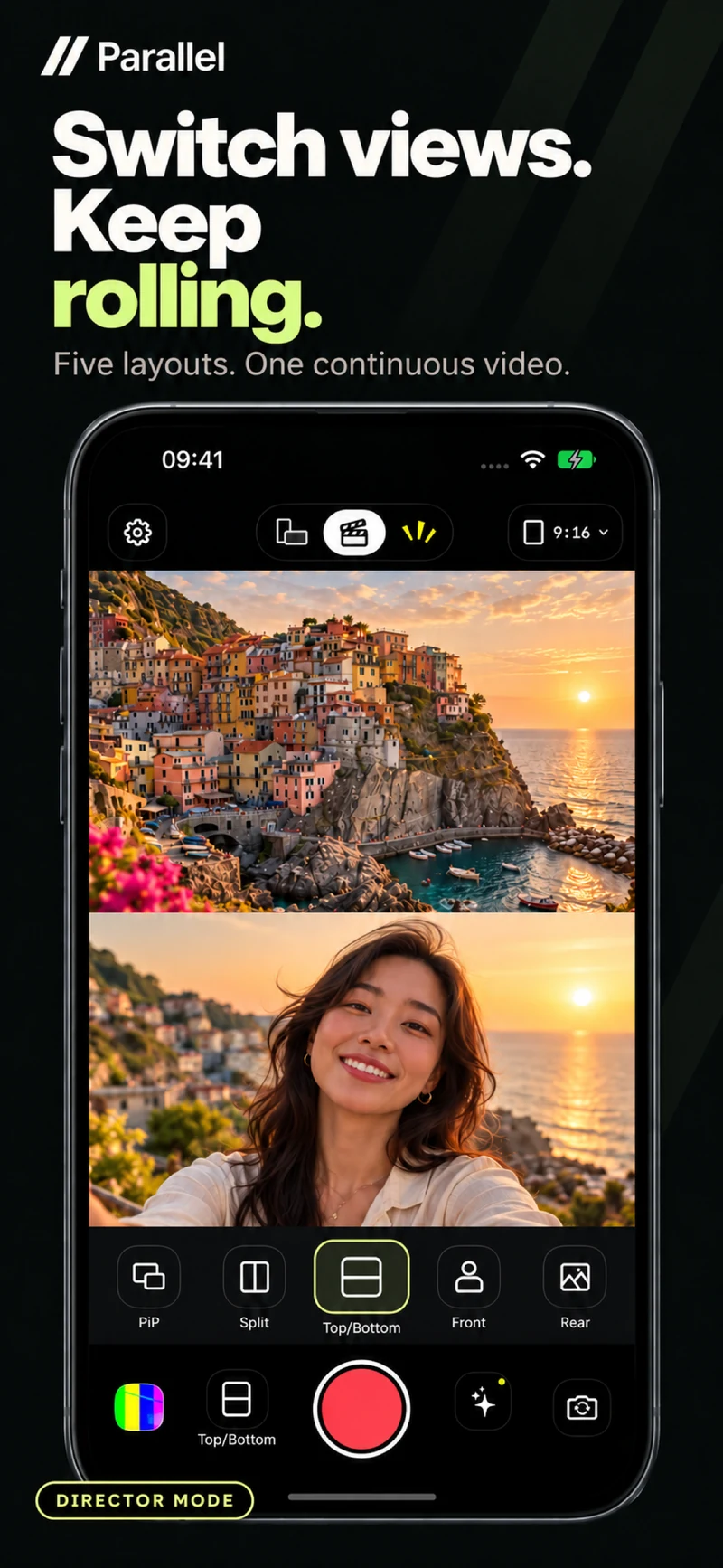
A video with two sources needs to make it clear where the audience should look. When the scene, presenter and demonstration all carry information, the composition decides what gets attention first. A suitable Picture in Picture layout keeps you visible while leaving space for the main content.
Parallel Director and Reaction offer Picture in Picture, Split, Top and Bottom, and full-screen views. You can switch layouts during recording to match what you are explaining.
Use Picture in Picture when the scene comes first
Picture in Picture, often shortened to PiP, places one source in a floating window over the other. For a reaction video, the original footage can occupy most of the canvas while your face remains in a corner.
It works well for explaining a technique, introducing a dish or narrating a location. Position the inset over an area with little important information. Avoid covering a face, a moving hand or text the viewer needs to read.
Current Parallel versions let you move and resize the floating front-camera view in Director and Reaction. Check it against the actual footage to find a size that shows expression without obscuring the scene.
Use Split when both sources matter throughout
Split divides the screen between the two sources. Consider it when the presenter and the scene both contribute information continuously, such as explaining an object while showing it.
Each source has less space than a full-screen view. If your footage contains small text or fine movements, review the result at phone-screen size. A balanced composition still needs to make the important details readable.
If the scene becomes difficult to inspect, give it more space or use a full-screen view for that part.
Try Top and Bottom for a stacked composition
Top and Bottom places the sources in separate upper and lower areas. Try it for portrait output when you want the presenter and footage to have distinct regions.
Before recording, inspect how each source fits. If a face or product is awkwardly cropped, change the camera distance or choose a different layout.
The most useful composition is the one that helps someone understand the content, even if a different layout looked attractive before you added your footage.
Change layouts for a clear reason
You might begin with the scene, move to PiP for commentary, then use a full-screen view to emphasize a detail. Let each change support a new piece of information.
- 1.Introduce what the viewer is about to see.
- 2.Leave enough time to inspect the main footage.
- 3.Change layout when an explanation or example needs it.
- 4.Review whether the picture follows your spoken points.
Choose portrait or landscape output before recording. Director and Reaction include layout changes in the composed result, so reviewing the finished take matters.
Apply these ideas to a travel vlog with Director or a reaction video made from existing footage.
Try [Parallel on the App Store](https://apps.apple.com/app/id6813023284), record the same idea with two layouts, and choose the one that makes the story easier to follow.
From the studio
Explore the apps behind the writing.
Continue reading
More studio notes
September 29, 2026
TinyPOS: An Offline POS App Built for Small Shops
TinyPOS is for people looking for simple sales software that works without a constant internet connection. If you need a compact POS on your phone, TinyPOS is worth trying because it focuses on fast checkout and everyday inventory control.
Read articleSeptember 28, 2026
What if your entire POS could fit in your pocket?
That’s the idea behind TinyPOS. I built it for small shops that need to sell and manage their business — without setting up a complicated POS system.
Read articleJuly 29, 2026
A cashier scanned the same product 300 times today.
If every scan takes just one extra tap, that’s 300 unnecessary taps in a single day.
Read article