
How to Make a Reaction Video on iPhone with Parallel
Learn how to make a reaction video on iPhone with Parallel. Import a clip, choose a layout, and balance original audio and microphone levels.
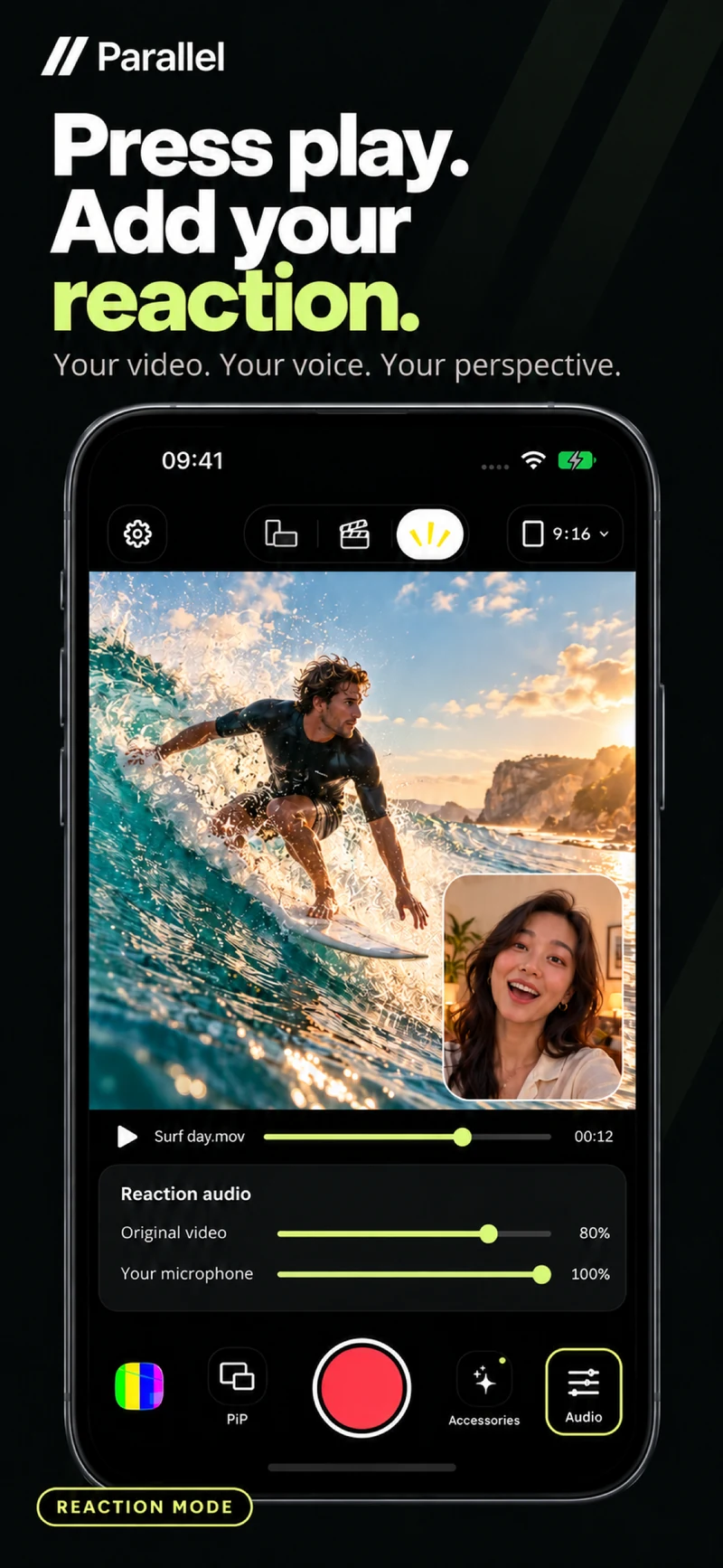
You have a tutorial, a travel clip or a performance you want to discuss. What it needs is your face and an explanation. To make a reaction video on iPhone, Parallel Reaction brings an existing clip, your front-camera view and your commentary into one workflow.
Choose a video from Photos or Files, set the composition, check the sound and record. The resulting video combines the source material with your perspective.
Prepare the clip and your main points
Choose footage you recorded yourself or have permission to use. If the file is stored in iCloud, allow it to download before importing.
Before recording, write down two or three points to explain. For a clip of your own piano practice, those might be hand position, timing and a section to practice again.
Connect each point to a specific moment. This gives your reaction a purpose beyond describing what the audience can already see.
Import the video and set the frame
- 1.Open Parallel and switch to Reaction.
- 2.Select a video from Photos or Files.
- 3.Preview it to identify the moments you want to discuss.
- 4.Choose portrait or landscape output before recording.
- 5.Select a layout and place your front-camera view away from important details.
Picture in Picture gives most of the screen to the original video. Split or Top and Bottom can work when your expression needs more space. You can change layouts during recording to direct attention to the right source.
Balance the sound before recording
Parallel provides separate levels for the original video and microphone. If the source contains loud music or speech, lower it enough to make your commentary easy to understand.
Record a short test and listen to the saved result before attempting the full video. Headphones help prevent the original soundtrack from playing through the phone's speaker and being picked up by the microphone.
Set the levels before your take. If the balance needs adjusting, change it before starting a new recording.
Pause the source to explain a detail
Reaction lets you pause and resume the original video while your front camera and commentary continue recording. This is useful when a detail appears too briefly for a full explanation.
For example, pause on a hand position at the piano, describe what needs attention, then resume playback. The audience has time to inspect the source while your explanation stays in the same take.
Use pauses where they help understanding. Let sections play naturally when the original movement or sound is the point.
Review the finished composition
After stopping, allow the export to finish and open the result in Gallery. Check your voice level, the floating camera position and any layout changes. Save to Photos or share after reviewing.
For more help with sound, read how to balance reaction video audio. If your subject is happening live rather than in an existing clip, see the Director recording guide.
Get [Parallel on the App Store](https://apps.apple.com/app/id6813023284) and start with a short clip you have something useful to explain.
From the studio
Explore the apps behind the writing.
Continue reading
More studio notes
September 29, 2026
TinyPOS: An Offline POS App Built for Small Shops
TinyPOS is for people looking for simple sales software that works without a constant internet connection. If you need a compact POS on your phone, TinyPOS is worth trying because it focuses on fast checkout and everyday inventory control.
Read articleSeptember 28, 2026
What if your entire POS could fit in your pocket?
That’s the idea behind TinyPOS. I built it for small shops that need to sell and manage their business — without setting up a complicated POS system.
Read articleJuly 29, 2026
A cashier scanned the same product 300 times today.
If every scan takes just one extra tap, that’s 300 unnecessary taps in a single day.
Read article