
Balance Reaction Video Audio on iPhone with Parallel
Balance reaction video audio in Parallel with separate source and microphone levels. Use headphones and a short test to make commentary clearer.
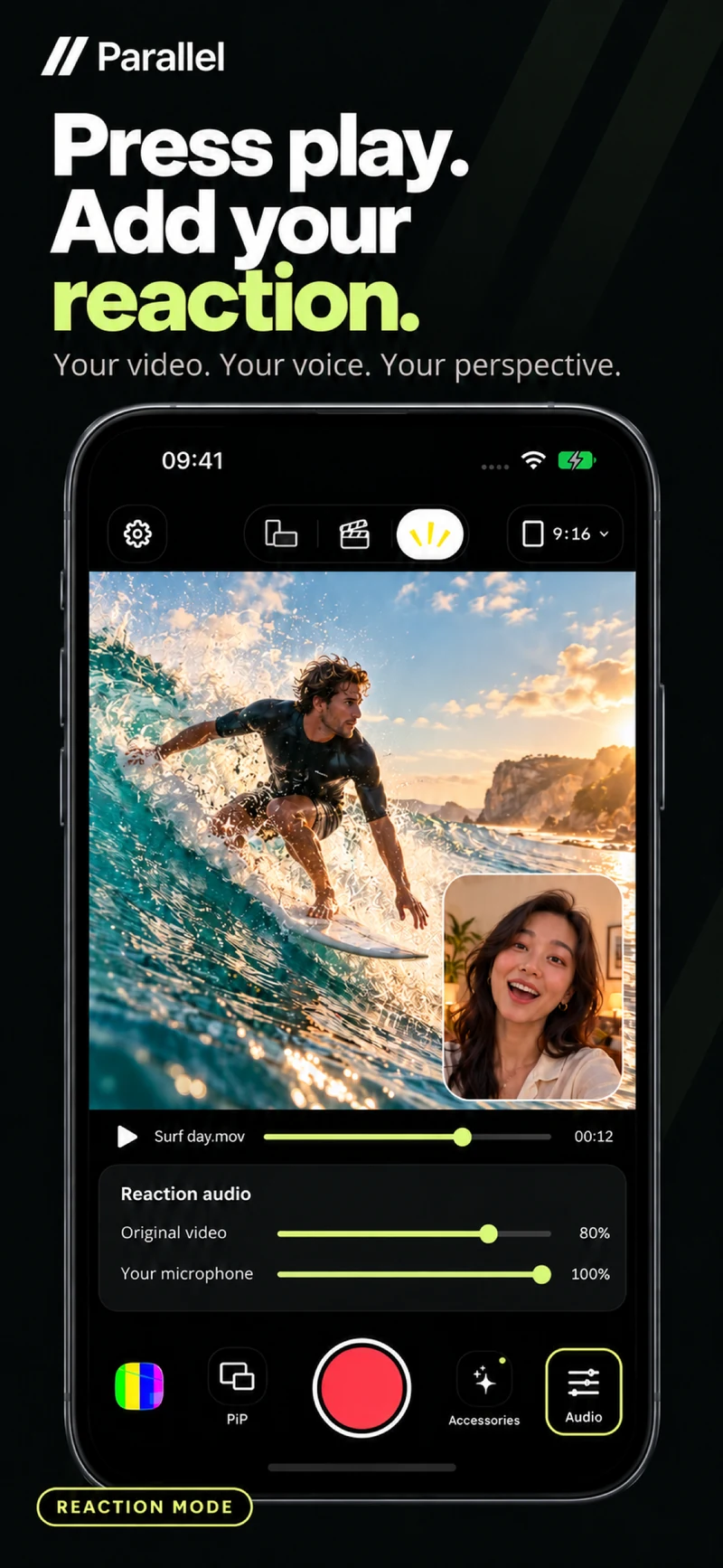
A reaction video can look good and still be difficult to follow if the original soundtrack overwhelms the commentary. To balance reaction video audio, start with one question: what should the viewer hear at this moment?
Parallel Reaction has separate original-video and microphone levels that you set before recording. You can prepare the balance, then record your front-camera view and commentary alongside a video from Photos or Files.
Understand the two audio sources
Original audio comes from the video you import. It may include dialogue, music or environmental sound. Microphone audio includes your voice and the sounds around you while recording.
When both contain loud speech at the same time, the audience has to follow two voices. Decide whether the original audio contains something they need to hear or mainly supports the picture.
That decision gives you a more useful starting point than applying the same volume balance to every clip.
Make commentary easy to understand
For a technique explanation, you may want to lower the original sound so the instructions stay clear. For commentary on a performance, keep enough source audio for the audience to understand the moment you are discussing.
There is no single level setting that suits every video. The source recording, your voice, your distance from the phone and the room all affect the result.
A test in the actual recording conditions helps you judge the balance. Listen to the saved video rather than relying only on how the source sounds during setup.
Use headphones while recording
If the original video plays through the phone's speaker, the microphone can pick it up again alongside your voice. This can produce repeated sound or a background that is harder to control.
Headphones let you follow the clip while limiting speaker audio entering the microphone. After connecting the headphones you plan to use, record a test to check the actual sound being captured.
Keep your speaking distance comfortable and consistent during the take.
Follow a short audio check
- 1.Choose a source section with a representative sound level.
- 2.Set the original-video and microphone levels before recording.
- 3.Speak naturally at the distance you intend to use.
- 4.Stop and listen to the finished test.
- 5.Adjust the settings and record another test if your voice is difficult to hear.
Make changes before the next take. Checking early is easier than discovering a problem after recording a full explanation.
Pause the source for a longer explanation
Some details appear too briefly for everything you want to say. Reaction allows you to pause the original video while the camera and commentary continue recording, then resume the source when you are ready.
This can also give your explanation room between sections of original dialogue. Use it where a pause helps the audience inspect or understand something.
After the take, wait for export to finish and listen to the composed result before sharing. If you are new to the workflow, read how to make a reaction video on iPhone.
Try [Parallel on the App Store](https://apps.apple.com/app/id6813023284) and use a short test to find a balance that makes your commentary clear.
From the studio
Explore the apps behind the writing.
Continue reading
More studio notes
September 29, 2026
TinyPOS: An Offline POS App Built for Small Shops
TinyPOS is for people looking for simple sales software that works without a constant internet connection. If you need a compact POS on your phone, TinyPOS is worth trying because it focuses on fast checkout and everyday inventory control.
Read articleSeptember 28, 2026
What if your entire POS could fit in your pocket?
That’s the idea behind TinyPOS. I built it for small shops that need to sell and manage their business — without setting up a complicated POS system.
Read articleJuly 29, 2026
A cashier scanned the same product 300 times today.
If every scan takes just one extra tap, that’s 300 unnecessary taps in a single day.
Read article