
How to Use Parallel on iPhone for Your First Recording
Learn how to use Parallel on iPhone, from camera permissions and mode selection to reviewing and saving your first video. Includes Pro and device notes.
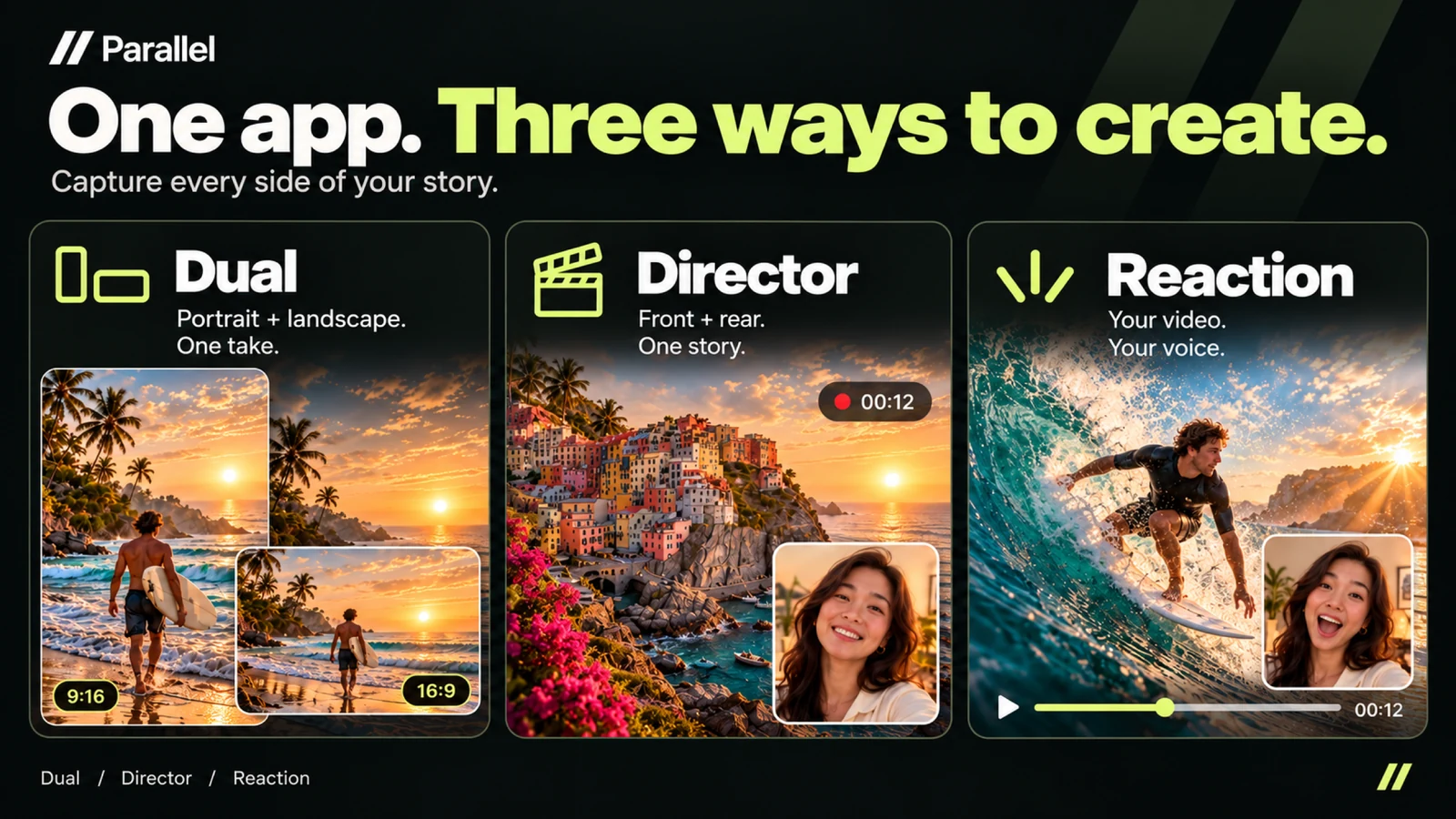
The first time you open a video app, you need to answer a few practical questions: which permissions to allow, which recording mode to choose and where to find the finished file. This guide explains how to use Parallel on iPhone, from setup to a video you have reviewed and saved.
Start with a short scene somewhere well lit, such as an object on a table. Once the process feels familiar, try a longer recording or a moving subject.
Check your device and install the app
Parallel is available for iPhone and iPad and requires iOS or iPadOS 18.0 or later. Director needs hardware that supports simultaneous front and rear recording. Available quality and camera combinations depend on your device.
Install Parallel from the App Store, open it and follow the introduction. If you installed it earlier, check for updates so the available features match the current workflow.
Allow the permissions you need
Camera access is necessary for recording. If you want speech or environmental sound, allow microphone access and enable audio recording as needed.
You can skip the microphone during setup if you do not need sound yet. If you previously denied access and want to use it later, check Parallel's permissions in iPhone Settings, then return to the app.
For Reaction, choose a video through Photos or Files. An iCloud file may need to download before import, so prepare it before the main recording.
Choose a mode for your intended result
- Dual: record portrait 9:16 and landscape 16:9 simultaneously from the rear camera as separate files.
- Director: combine the front and rear cameras in one video on supported devices.
- Reaction: add your front-camera view and commentary to an existing video.
To learn the basic recording and saving steps, try Dual with a stationary object. For Director or Reaction, choose output orientation and layout before starting.
Record a test and review it in Gallery
- 1.Check that the subject is framed clearly and any floating camera is out of the way.
- 2.If you need speech, say a test sentence at your normal filming distance.
- 3.Record a short clip and stop.
- 4.Open Gallery and play it back to check the picture, sound and layout.
- 5.With Dual, review both the portrait and landscape versions.
For Reaction, allow the composed video export to finish. Check the balance between the original audio and your commentary before saving the version you want to use.
Save your file and recognize Pro options
From the preview, save to Photos or share. Dual lets you select one format or both files. Director and Reaction each produce one composed video. Keep copies of important recordings before removing the app or changing devices.
The recording workflow does not require an account. Core modes are available free, while the app also offers Pro features. Check the conditions and price displayed in the app for options marked Pro; higher recording quality also requires supported hardware.
Next, learn how to frame both Dual outputs or how to choose a layout for two sources.
Start with [Parallel on the App Store](https://apps.apple.com/app/id6813023284), complete a short recording, and choose a mode for your next story.
From the studio
Explore the apps behind the writing.
Continue reading
More studio notes
September 29, 2026
TinyPOS: An Offline POS App Built for Small Shops
TinyPOS is for people looking for simple sales software that works without a constant internet connection. If you need a compact POS on your phone, TinyPOS is worth trying because it focuses on fast checkout and everyday inventory control.
Read articleSeptember 28, 2026
What if your entire POS could fit in your pocket?
That’s the idea behind TinyPOS. I built it for small shops that need to sell and manage their business — without setting up a complicated POS system.
Read articleJuly 29, 2026
A cashier scanned the same product 300 times today.
If every scan takes just one extra tap, that’s 300 unnecessary taps in a single day.
Read article