
Parallel for iPhone: Three Ways to Create Better Videos
Meet Parallel for iPhone. Record portrait and landscape together, capture both cameras, or add your face and commentary to an existing video.
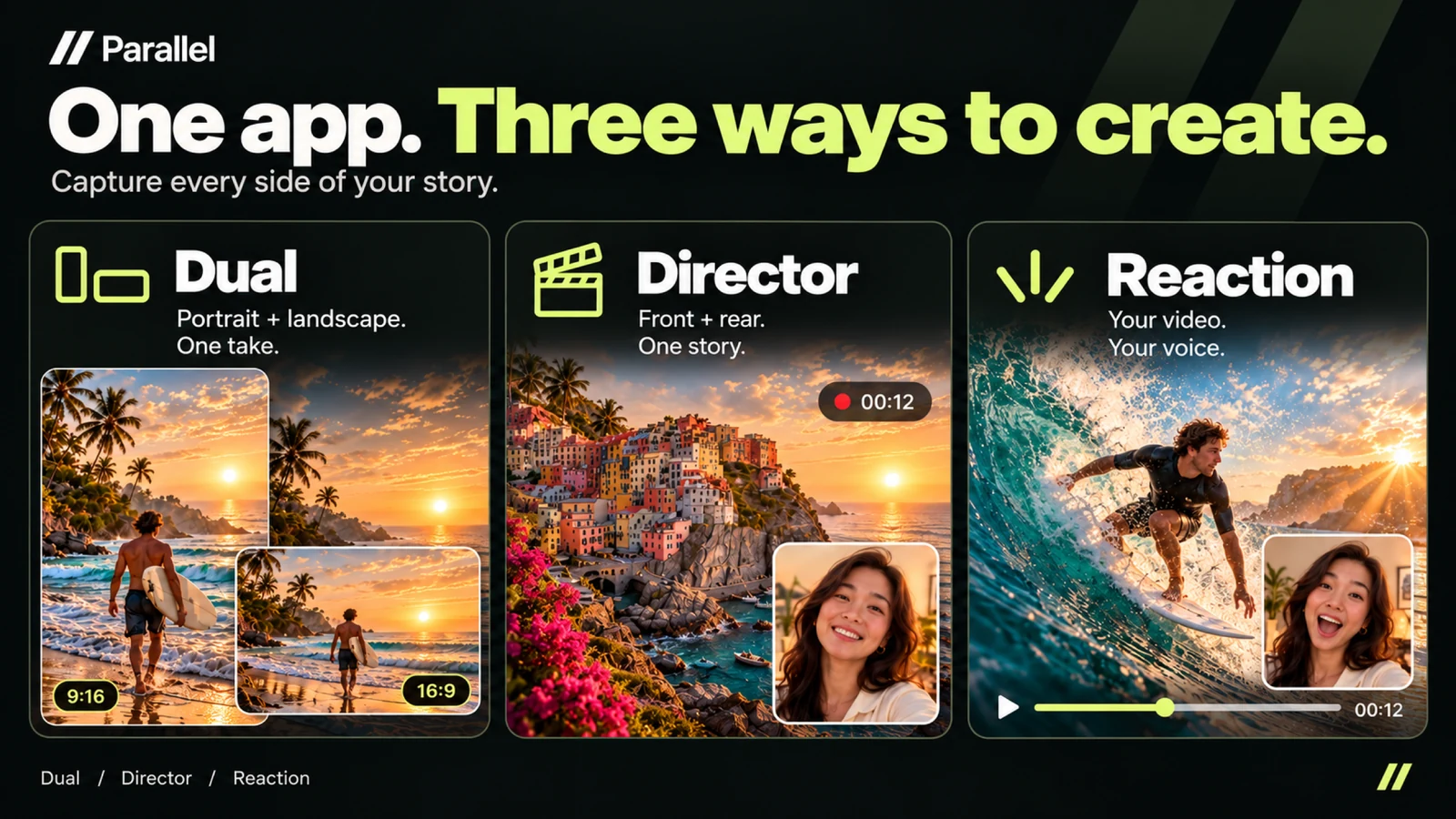
You finish recording a great moment, then realize you also need a vertical version. Or you want to show both a scene and your reaction, but switching cameras interrupts your story. Parallel for iPhone gives you three ways to approach those situations: Dual, Director and Reaction.
The best place to start is the result you want. Do you need two video formats, two live camera views, or commentary on footage you already have? Each mode serves a different purpose.
Dual records one moment in two formats
Dual uses the rear camera to record portrait 9:16 and landscape 16:9 videos simultaneously. It saves separate files, so you can choose the version that suits your next edit or share both.
Imagine filming someone making pottery. A portrait frame can emphasize their hands and the finished piece, while a landscape frame includes more of the workshop. Check both previews before recording so the important details remain visible in each version.
Dual is the choice when you need two aspect ratios. To include your face alongside a live scene, use Director.
Director combines the front and rear cameras
On supported devices, Director records the front and rear cameras together in one composed video. Your audience can see what you are showing and how you respond to it.
Choose Picture in Picture, Split, or Top and Bottom. You can also change layouts during a take, such as moving from a full view of a dish to a composition that includes your commentary.
Choose portrait or landscape output before recording. Simultaneous front and rear capture depends on your device and camera configuration, so check Director on the phone you plan to use.
Reaction adds your perspective to existing footage
Reaction starts with a video from Photos or Files. Import a clip, record your front-camera view and commentary, and create a combined video.
The original video and microphone have separate audio levels that you set before recording. Headphones help prevent the phone's speaker audio from entering the microphone. If the source is stored in iCloud, allow it to download before importing.
Reaction works well when you have something specific to explain: a technique, a moment from a trip, or a detail in your own footage.
Start with a short recording
- 1.Choose Dual, Director or Reaction for the result you need.
- 2.Check framing, camera access and microphone access if you want speech.
- 3.Record a short test and review the picture and sound in Gallery.
- 4.Save to Photos or share when you are happy with the result.
Parallel supports English and Vietnamese and requires iOS or iPadOS 18.0 or later. Core recording modes are available free, with in-app purchases for Pro features. Check the options shown in the app when choosing advanced features.
For a focused starting point, read about recording portrait and landscape together or making a reaction video.
Pick a story and try recording it with [Parallel on the App Store](https://apps.apple.com/app/id6813023284). Visit the Parallel product page for an overview.
From the studio
Explore the apps behind the writing.
Continue reading
More studio notes
September 29, 2026
TinyPOS: An Offline POS App Built for Small Shops
TinyPOS is for people looking for simple sales software that works without a constant internet connection. If you need a compact POS on your phone, TinyPOS is worth trying because it focuses on fast checkout and everyday inventory control.
Read articleSeptember 28, 2026
What if your entire POS could fit in your pocket?
That’s the idea behind TinyPOS. I built it for small shops that need to sell and manage their business — without setting up a complicated POS system.
Read articleJuly 29, 2026
A cashier scanned the same product 300 times today.
If every scan takes just one extra tap, that’s 300 unnecessary taps in a single day.
Read article