
Film for TikTok and YouTube with Parallel Dual
Plan a TikTok and YouTube filming workflow with Parallel Dual. Capture portrait and landscape footage together, then edit each version for its audience.
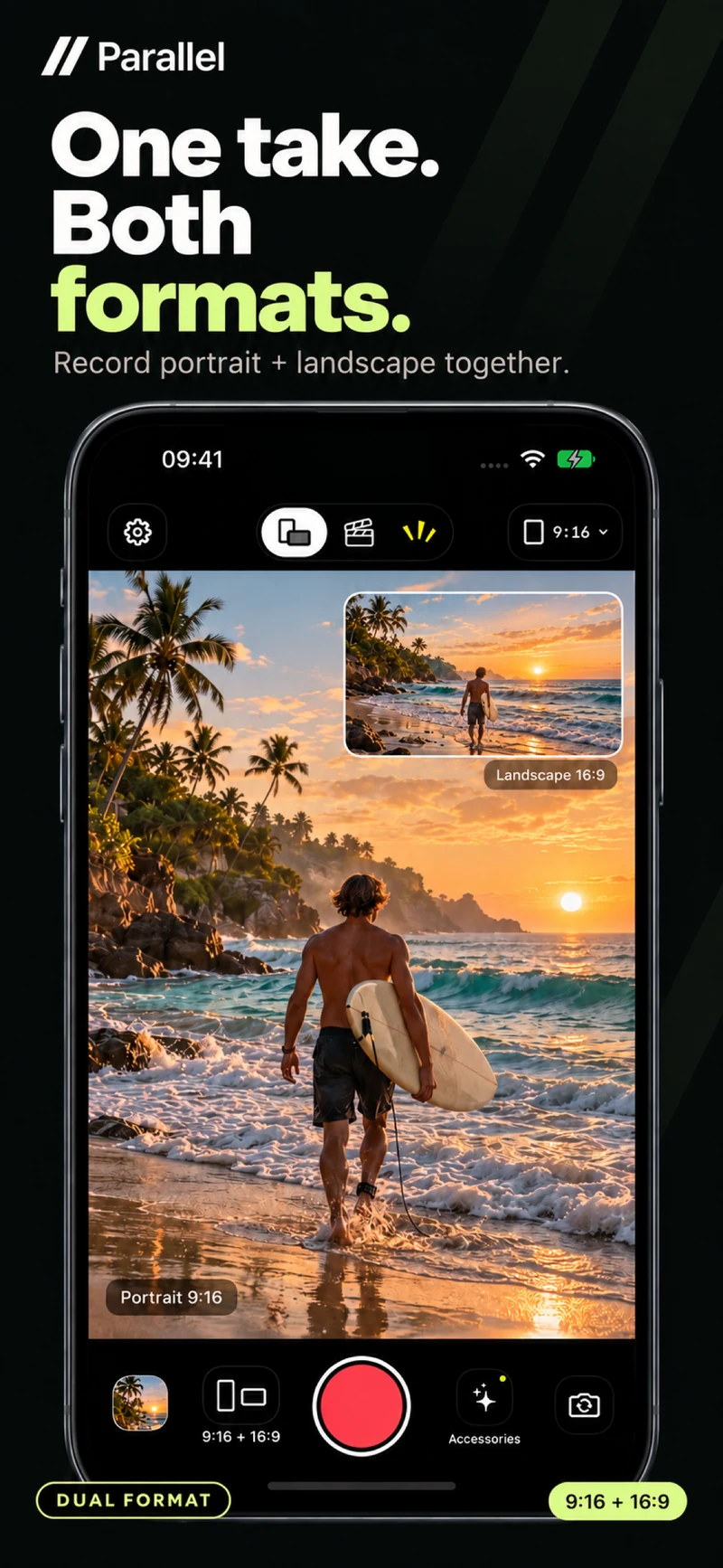
One filming session can support several channels when you plan the outputs first. To film for TikTok and YouTube, you might want a portrait version for a short clip and a landscape version for a longer story. Parallel Dual records both formats simultaneously, giving you separate source files for the next stage of editing.
The advantage is keeping the same moment in two formats. Your final structure, pacing and explanation can still change to suit each version.
Start with one clear story
Suppose you are making a video about a new coffee recipe. The shared story could explain how to make it and what gives it a distinctive taste.
Build a shot list around that idea: ingredients, the key preparation steps, the finished drink and your assessment. A short edit may keep one striking action and a useful tip. A longer edit may also explain proportions, common mistakes and how the drink turned out.
Using the same footage does not mean both finished videos need the same sequence.
Match each shot to a recording mode
- Use Dual for product or process footage that needs portrait and landscape files.
- Consider Director for a live introduction that includes both you and the scene, on supported devices.
- Use Reaction to add an explanation to footage you have already recorded.
This keeps your choice of mode tied to the job of each shot. For the recording steps, read the portrait and landscape video guide.
Frame the action for both outputs
Dual uses the rear camera to capture 9:16 and 16:9 together. Before an important shot, check both previews and keep the main action clearly visible in each.
A coffee brewer near the edge of a wide frame may look balanced there but leave too little room in portrait. Move the phone or rearrange the objects before recording.
If you are showing a process, rehearse the whole action. Opening a lid or lifting a kettle can require more room than a static product shot. Leave a brief moment before and after the action so you have options when choosing edit points.
Give each edit its own job
Review both files in Gallery, then save the versions you need to Photos. Continue with captions, music and sequencing in your preferred editing tool.
A short video might open with the finished drink and move straight to the most useful step. A longer version might introduce the ingredients and explain why the method works. Review the final picture and text on the device you plan to use for publishing.
Parallel handles recording and exporting your footage. Publish through TikTok, YouTube or your usual channel-management tools.
Test the workflow on one topic
Try a small shoot before changing your entire production process. Record a few Dual shots and build two edits. Notice which scenes work in both aspect ratios and which deserve a separate recording.
For another practical example, see filming product videos on iPhone.
Try [Parallel on the App Store](https://apps.apple.com/app/id6813023284) for your next topic and build a footage library with both portrait and landscape options.
From the studio
Explore the apps behind the writing.
Continue reading
More studio notes
September 29, 2026
TinyPOS: An Offline POS App Built for Small Shops
TinyPOS is for people looking for simple sales software that works without a constant internet connection. If you need a compact POS on your phone, TinyPOS is worth trying because it focuses on fast checkout and everyday inventory control.
Read articleSeptember 28, 2026
What if your entire POS could fit in your pocket?
That’s the idea behind TinyPOS. I built it for small shops that need to sell and manage their business — without setting up a complicated POS system.
Read articleJuly 29, 2026
A cashier scanned the same product 300 times today.
If every scan takes just one extra tap, that’s 300 unnecessary taps in a single day.
Read article